jamie.lentin.co.uk

Debian Linux on the D-Link DNS-320 & DNS-325 NAS

They're both 2-bay NASes based on the Marvell Kirkwood SoC, like the sheevaplug. They come with their own flavour of Linux, but this can be thrown away and use standard Debian instead.

Hardware

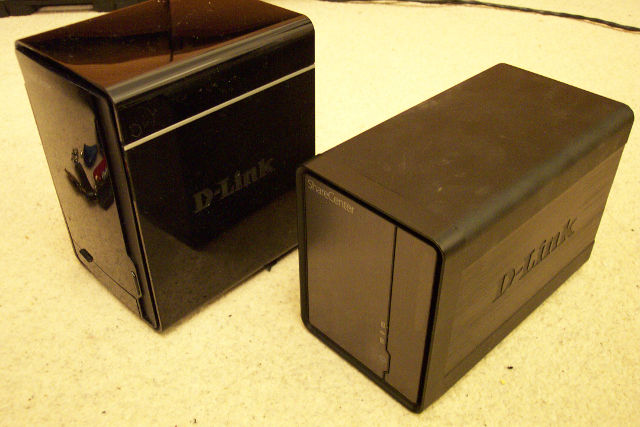
The main difference between the two is the case. The DNS-325 is a reasonably swish-looking metal case with drives slid in from the front. The DNS-320 has a much cheaper case with drives that go in the top like a toaster.

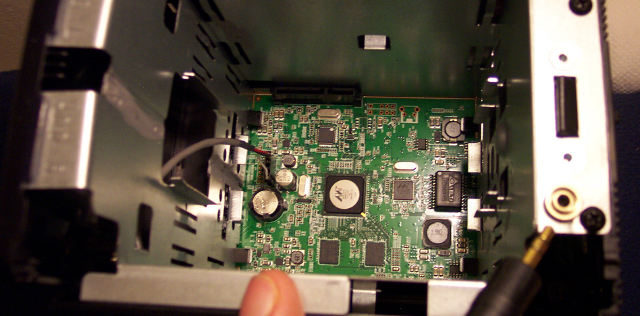
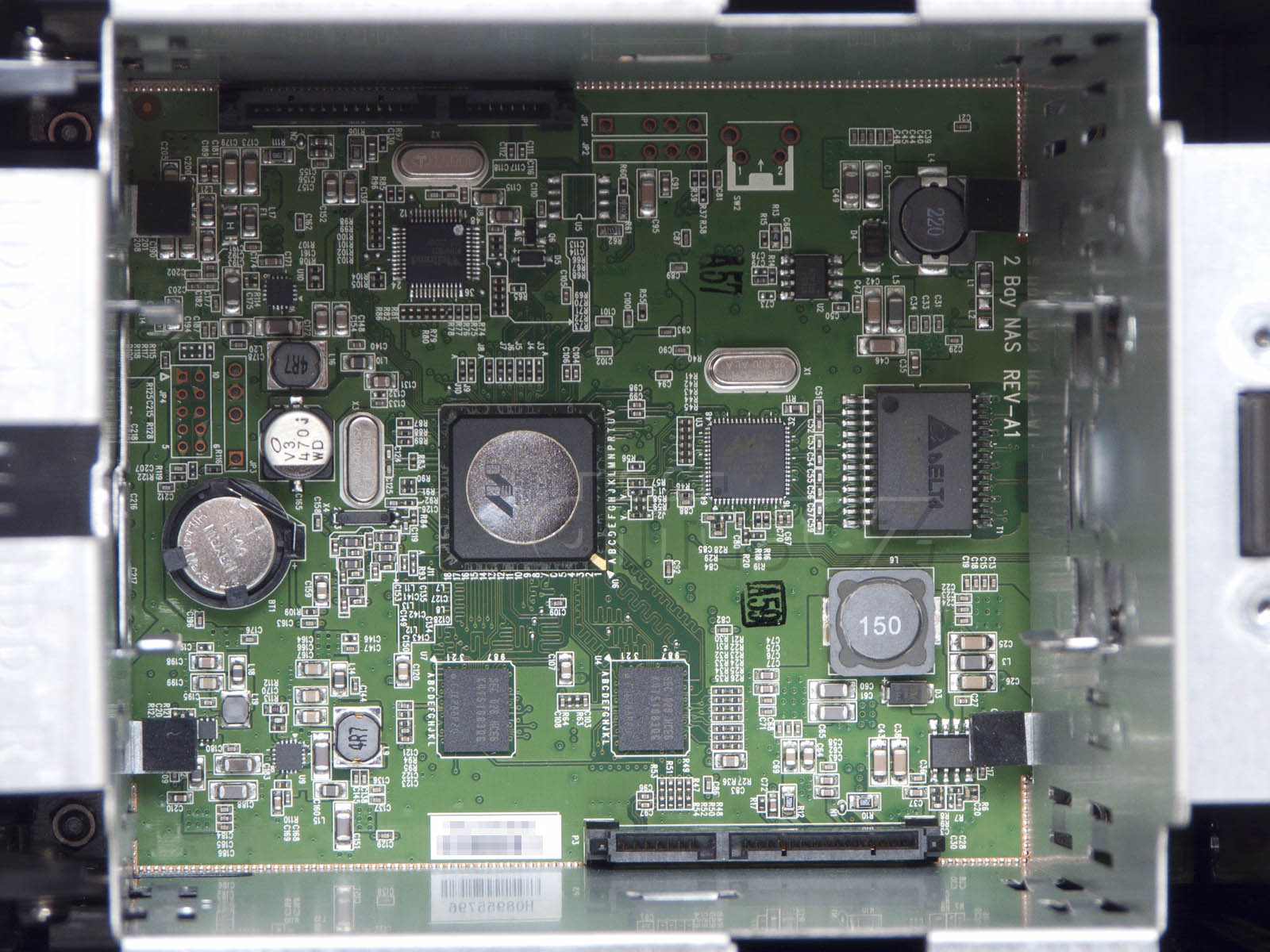
The innards are approximately the same. The DNS-320 has half the RAM and is underclocked at 800Mhz, which I'm not sure is supposed to be possible. It could be that it was supposed to have a 88F6192, but something happened late in development. Maybe other DNS-320 revisions do.

DNS-320DNS-325
SoCMarvell 88F6281-A1 @800MhzMarvell 88F6281-A1 @1200Mhz
RAM2xSEC K4T51083QG-HCE6:64Mx8 @333 CL5 (128MB total)2xSEC K4T1G084QF-HCF7:128Mx8 @400 CL6 (256MB total)
FlashSAMSUNG (128MB total)SAMSUNG 946 K9F 1G08U0B PCB0 (128MB total)
PHYMarvell 88E1116R-NNC1
FanADDA AD045HB-G73 (Same as DNS-323)
TempInternal to Weltrend chip?G751-2f (Same as DNS-323)
PMU(?)Weltrend WT69P803Holtek HT48C06E
Appear to be microcontrollers that control power on/off and other miscallaneous functions, but hard to tell for sure.

Chassis & dissassembly

Dissassembling a DNS-325 is very easy, and no "warranty void" stickers in the way.

  1. At the back of the unit, remove 4 circular rubber pads and screws underneath, remove plastic back
  2. Remove 4 small silver screws from metal plate underneath the plastic back
  3. Slide entire circuit board out

The DNS-320 is slightly more involved, but still has no stickers in the way.

  1. Take off lid
  2. Undo 2 screws around catch
  3. Remove 4 rubber feet and screws underneath
  4. Pull innards out
  5. Undo 4 screws either side of front panel and remove it
  6. Undo 4 nuts holding chassis onto mainboard

Serial Port

There is an unpopulated space for a serial port standard 0.1" pitch header. The serial port runs at 3.3v TTL so requires either a MAX232 adapter or a USB serial adaptor designed to run at 3.3v. A TTL-232R-3V3-AJ cable is reasonably cheap, and a headphone jack for serial can be added in a reasonably neat fashion.

The pinout is as follows:-

1x345
RXD(gap)3.3vGroundTXD
DNS-320 (JP3)
The header is the center of board so a header can be soldered on, then a cable attached.
DNS-325 (JP1)
There is no space for a proper header connector whilst the case is closed. I soldered wire directly to the motherboard, and put a stereo jack on the other end, looped through and taped to the back of the case.
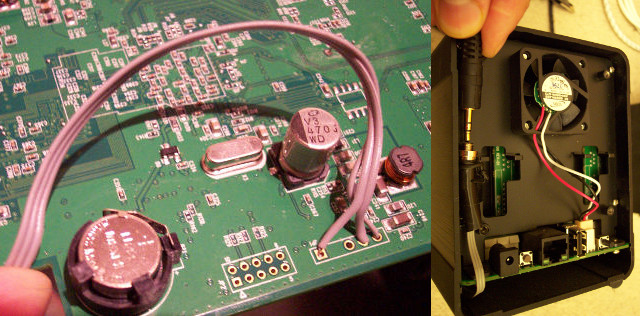
To communicate to the NAS, open the serial port at 115200 baud, 8-n-1, flow control off. You should be able to see it boot, however D-link put in some petty measures to stop you tinkering. If you want to stop u-boot booting, then press space then 1 when prompted to press any key. To get a prompt once the original firmware is booted, type the break-in code 5784468.

JTAG

The JTAG port is a 2x5 pin header, the same as a DNS-323. It is described here.

Stefan Herbrechtsmeier says "The image and table have different signal names for pin 2 and 9. I made the mistake using the image and not the table when I solder the adapter for my JTAG debugger. Because of this I can not reset the processor correct and have some trouble to reflash the memory."

On the DNS-320 it's JP4, on the DNS-325 it's JP2. Both are next to the serial console header.

Other connectors

DNS-320
There is space for 2 extra headers resembling serial ports, JP1 (3.3v) and JP2 (5v) and a button (SW1). These are connected to the Welltrend processor and probably not much use. There is a GPIO pin available on the space for U5, possibly where the G751-2f would have gone?
DNS-325
There is a space labelled U11 on the underside, which appears to expose I2C.

Booting into Linux

It's not necessary to remove the original firmware to boot Linux, so long as you have serial access you can tell u-boot to load a kernel over the network and boot that.

Compiling a kernel

Any Linux 3.0+ kernel should be fine, once this patch to provide board support is applied. Hopefully one day kirkwood will use device tree and the kernel will not require patching.

You also need to update the kernel's mach-types database. This is the file that defines the various arcNumber codes we put into uBoot later. Again this is superseded by device-tree, but not dealing with that here.

Emdebian provide you with a handy source of cross-compilers for various architectures, saving you effort. Add a /etc/apt/sources.list.d/emdebian.list:

# NB: Choose "stable" even with "unstable" Debian. Worked fine, unstable didn't
deb http://www.emdebian.org/debian/ stable main

Once you have an appropriate toolchain, you can compile an ARM kernel using much the same instructions as a regular compilation. For example:

host:~$ cd ${kernel_source}
# Get and apply the patch for the DLink NAS
host:linux-2.6$ wget http://jamie.lentin.co.uk/devices/dlink-dns325/0001-board-support.patch
host:linux-2.6$ cat 0001-board-support.patch | patch -p1
# Update the mach-types database, to ensure the DNS-320 is there
host:linux-2.6$ wget -O arch/arm/tools/mach-types http://www.arm.linux.org.uk/developer/machines/download.php
# Get a config that should work
host:linux-2.6$ wget -O .config http://jamie.lentin.co.uk/devices/dlink-dns325/kernel_config.txt
# Build it
host:linux-2.6$ alias cross-make='make ARCH=arm CROSS_COMPILE=arm-linux-gnueabi-'
host:linux-2.6$ cross-make menuconfig
host:linux-2.6$ cross-make -j5 uImage && cross-make -j5 modules

Creating a root filesystem

Next your system will need a root filesystem. My good friend has a guide on building one using debootstrap. Follow that.

This needs to be accessible for the kernel once it's booted, you could write it onto USB stick, NFS network boot or SATA HDD.

Booting the NAS

Firstly you need another computer with a TFTP server, e.g "tftpd-hpa" which is available in Debian. Copy the uImage into the directory is serving. For example:

host:linux-2.6$ cp ./arch/arm/boot/uImage /srv/tftp/dlink-nas.img

Next, connect a serial port and turn on the NAS. At the "press any key" prompt press space then 1. You should then be sitting at a "Marvell>>" prompt. Do something like:

Marvell>> setenv ethaddr [MAC address: u-boot may be inventing a random one]
Marvell>> setenv ipaddr [Our IP address, e.g. 10.150.1.3]
Marvell>> setenv serverip [Where TFTP server is, e.g. 10.150.1.10]
Marvell>> setenv mainlineLinux yes
Marvell>> setenv bootargs console=ttyS0,115200 ip=dhcp root=/dev/nfs rw debug
# For DNS-320...
Marvell_DNS320>> setenv arcNumber 3985
# For DNS-325...
Marvell>> setenv arcNumber 3800
Marvell>> tftp 0x1000000 dlink-nas.img ; bootm 0x1000000

This does the following.

  1. Set the MAC address. D-link ships the NASes with corrupt u-boot configuration, so it assigns a random MAC address until you do saveenv. If you're not sure what to choose, make a note of what it's got now and use that.
  2. Configure the network so the TFTP server can be found.
  3. Tell linux which ARM board it is booting off
  4. Copy kernel image into memory via TFTP, and run it.

Installing to NAND

Once you have no desire to go back to D-link, you can overwrite the kernel on the NAND with your own, or install the entire root filesystem onto the NAND.

Flashing kernel image

NAND chips can be divided into partitions. D-Link by default divide it into 6:

Creating 6 MTD partitions on "orion_nand":
0x000000000000-0x000000100000 : "u-boot"
0x000000100000-0x000000600000 : "uImage"
0x000000600000-0x000000b00000 : "ramdisk"
0x000000b00000-0x000007100000 : "image"
0x000007100000-0x000007b00000 : "mini firmware"
0x000007b00000-0x000008000000 : "config"

The first is for u-boot, the second for the kernel image. We want to write the uImage built earlier here:

# flash_eraseall /dev/mtd1
Erasing 128 Kibyte @ 500000 -- 100 % complete.
# nandwrite -p /dev/mtd1 ${path-to-uImage}
Writing data to block 0 at offset 0x0
Writing data to block 1 at offset 0x20000
Writing data to block 2 at offset 0x40000
Writing data to block 3 at offset 0x60000
Writing data to block 4 at offset 0x80000
Writing data to block 5 at offset 0xa0000
Writing data to block 6 at offset 0xc0000
Writing data to block 7 at offset 0xe0000
Writing data to block 8 at offset 0x100000
Writing data to block 9 at offset 0x120000
Writing data to block 10 at offset 0x140000
Writing data to block 11 at offset 0x160000
Writing data to block 12 at offset 0x180000
Writing data to block 13 at offset 0x1a0000
Writing data to block 14 at offset 0x1c0000

Finally, set up u-boot environment to permanently boot our kernel:

Marvell>> setenv ipaddr 10.150.1.3 ; setenv serverip 10.150.1.10
Marvell>> setenv mainlineLinux yes
# For DNS-320...
Marvell_DNS320>> setenv arcNumber 3985
# For DNS-325...
Marvell>> setenv arcNumber 3800
Marvell>> setenv bootargs console=ttyS0,115200 rw panic=10
Marvell>> setenv net_bootargs ip=dhcp root=/dev/nfs
Marvell>> setenv bootcmd 'setenv bootargs $(bootargs) $(net_bootargs) ; nand read.e 0x1000000 0x00100000 0x00200000 ; bootm 0x1000000'
Marvell>> saveenv
Saving Environment to NAND...
Erasing Nand...Writing to Nand... done

Formatting NAND with UBIFS

If you are booting off a USB stick, or the HDDs, the above could be job done as far as you're concerned. However you can install Debian onto the NAND too, so the NAS isn't dependent on any external devices.

As mentioned before, the NAND is divided up into partitions. By default D-Link divide it up into a spew of partitions that isn't really necessary. All we want is three, uBoot, kernel image and root FS. The partition table can be overridden with the kernel boot arguments:

Marvell>> setenv bootargs 'mtdparts=orion_nand:1M(u-boot)ro,2M(uImage),-(root) console=ttyS0,115200 rw panic=10'
Marvell>> saveenv
Saving Environment to NAND...
Erasing Nand...Writing to Nand... done

NB: The kernel uImage partition is shrunk to 2M above, to get a bit more space for the root partition. Make sure your kernel fits too.

Next we need format /dev/mtd2 with a filesystem. Again, my friend has good advice on what to do here. Although you probably don't need to prepare an initrd if the device is already booting, just copy it over.

The TL:DR version is, prepare a filesystem image:

host:~# mkfs.ubifs -v -r ${nas_rootfs} -m 2048 -e 129024 -c 1016 -x zlib -o ubifs.img
host:~# cat <<EOF > ubi.cfg
[ubifs]
mode=ubi
image=ubifs.img
vol_id=0
vol_size=100MiB
vol_type=dynamic
vol_name=rootfs
vol_flags=autoresize
EOF
host:~# ubinize -v -m 2048 -s 512 -p 131072 -o ubi.img ubi.cfg

Then on your NAS:

nas:~# ubiformat -s 512 -f /ubi.img /dev/mtd2

Finally, modify U-Boot so that it uses our new FS:

Marvell>> setenv flash_bootargs 'ubi.mtd=root root=ubi0:rootfs rootfstype=ubifs'
Marvell>> setenv bootcmd 'setenv bootargs $(bootargs) $(flash_bootargs) ; nand read.e 0x1000000 0x00100000 0x00200000 ; bootm 0x1000000'
Marvell>> saveenv
Saving Environment to NAND...
Erasing Nand...Writing to Nand... done

Saving space

You've probably noticed that the flash chip is 128MB, and the above squeezes a full-fat Linux distribution onto it. This works, but be wary of what you install. The following also help

  • Move /var/apt/lib/apt, /var/apt/lib/dpkg, /var/apt/cache/apt, /var/apt/cache/debconf onto a partition on the HDD. They are only needed when running apt-get, and can get pretty big.
  • Stop syslogd, or log over the network to a different host.

Userland configuration

I'm guessing you already know how to setup software RAID under linux and get the NAS to behave vaguely like a NAS. This is how to control the rest of the hardware.

There are several useful utilities in the dns-nas-utils deb package, which you can get here, or look at the source on github.

Controlling LEDs

The LEDs can be turned on/off via. sysfs:

nas:~# echo 1 > /sys/class/leds/dns320\:red\:usb/brightness
nas:~# echo 0 > /sys/class/leds/dns320\:red\:usb/brightness

You can control what triggers them via. sysfs too. To make the power light pulsate with how loaded the system is, do:

nas:~# echo heartbeat > /sys/class/leds/dns325\:white\:power/trigger

The SATA activity LEDs are wired up so the SoC takes care of them, however they are commented in the board support file if you want to have more control of them.

Using buttons

To test, you can use the evtest tool to see button presses, evtest /dev/input/event0.

To trigger actions on button presses, use the esekeyd daemon:

nas:~# apt-get install esekeyd
nas:~# cat <<EOF > /etc/esekeyd.conf
POWER:/sbin/halt
RESTART:/sbin/reboot
EJECTCD:/bin/umount /dev/sdc
EOF

And edit /etc/default/esekeyd to start the daemon.

Power-recovery

The NAS has the ability to turn itself back on if power is interrupted. By default the kernel turns this on (it's a server, why wouldn't you want it turning on when the power comes back?), but you can turn it off via. a kernel commandline option, kw_dns325_no_power_recover.

Temperature sensor

There is a script in my dns-nas-utils package dns-temperature, that can get the temperature regardless of which NAS you have.

DNS-320
The temperature is read by sending commands to whatever is the other end of ttyS1. See the dns-temperature source for the protocol.
DNS-325
The temperature can be read from /sys/class/hwmon/hwmon?/device/temp1_input

Controlling Fan

The dns-nas-utils package has a daemon to control the fan at similar thresholds to what d-link did.

The fan can be controlled directly by twiddling sysfs thus:

nas:~#  echo 6000 > /sys/class/hwmon/hwmon?/device/fan1_target # High speed
nas:~#  echo 3000 > /sys/class/hwmon/hwmon?/device/fan1_target # Low speed
nas:~#  echo    0 > /sys/class/hwmon/hwmon?/device/fan1_target # Off